
What should normal tracking look like?
Your tracker should record a smooth path on the map that closely matches the actual route you drove. We capture your location every few seconds while you're driving.
If your path looks wrong – either jumping all over the place or missing sections – something needs adjusting.
Problem #1: Path jumping around in one spot (like a spider web)
What it looks like: Lots of lines radiating out from one central location, creating a messy "spider web" pattern on the map.
What this means: Your tracker thinks the engine is still running when it's actually parked, and it's trying to record your location in a spot with poor GPS signal (like a garage or carport).
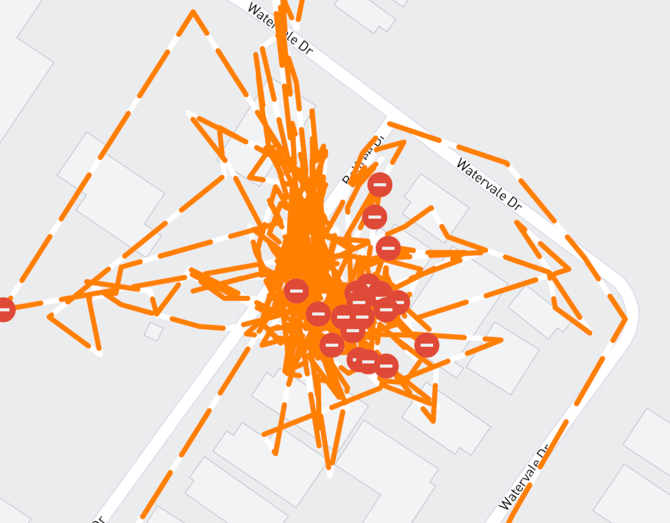
Main cause: Engine detection not working properly
Your tracker needs to know when your engine is on or off. If it gets this wrong, it won't go to sleep when parked and will keep trying to get GPS locations even when the signal is weak.
How your tracker detects the engine is on:
- Voltage (default): Engine on = 13.2V or higher
- Ignition wire: Uses a wire connected to your ignition circuit (hardwired installs only)
- Motion: Detects if the vehicle is moving
- Combination: Uses multiple methods together
The fix: Adjust your engine detection settings. See our guide on "Setting up engine on/off detection" or contact support.
Other causes of jumping paths:
Trickle charger/battery maintainer: If you use a battery charger, it raises your voltage to around 14V, which tricks the tracker into thinking the engine is on.
Solution: Change your voltage threshold to higher than your charger's voltage, or switch to a different engine detection method.
Motion sensor detecting vibrations: If your tracker is picking up vibrations from equipment in the vehicle or nearby sources, it won't go to sleep.
How to check: Use the Raw GPS Data report (enable metadata in options) to see if motion is being detected when the vehicle is parked.
Solution: Make sure the tracker is securely mounted and can't move. If it's still detecting motion when there isn't any, contact support and we can recalibrate the motion sensor.
Incorrect hardwiring: If the ignition sense wire is connected to a power source that's always on (instead of only on when the engine runs), the tracker won't sleep.
Solution: Check that the ignition wire is connected to a circuit that's only powered when the engine is on (like your radio circuit). Use the Raw GPS Data report to check the ignition wire status.
Problem #2: Missing sections of the path (gaps in tracking)
What it looks like: Your path has gaps where no tracking data appears, even though you were driving.
What this means: The tracker lost GPS signal during those sections.
Most common cause: Poor installation location
9 times out of 10, this is because the tracker can't "see" enough sky from where it's installed.
Remember:
- ✓ GPS works through: Glass, plastic, fibreglass
- ✗ GPS doesn't work through: Metal, carbon fibre
The thicker the metal above your tracker, the worse the signal.
How to fix it:
- Check the tracker orientation
- Make sure "Face this side toward sky" is actually pointing upward
- Move it to a better location
- Best spot: Under the dashboard, as high as possible, with minimal metal above it
- See our "Choosing the best install location" guide
- Check the LED lights
- Green navigation light flashing every 2 seconds = Good GPS signal ✓
- Solid green navigation light = No GPS signal ✗
When is it a problem?
One-off occurrence? → Probably just drove through a tunnel or underground car park. Ignore it.
Happens frequently? → Your tracker needs to be moved to a better location with a clearer view of the sky.
Note: Because GPS satellites are constantly moving across the sky, you might find signal loss only happens at certain times of day if your tracker is in a borderline location.
How to check what's happening
Use the Raw GPS Data report in your account:
- Go to Reports > Raw GPS Data
- Enable metadata in the options
- Run the report for the time period you're having issues
- Click on a row to expand it and see:
- Motion sensor status
- Ignition wire status
- Number of satellites visible (need at least 4, more is better)
- Engine detection status