
Can't remember your password? Don't worry, you can reset it and regain access to your Track My Ride account quickly. This guide walks you through the password reset process, from requesting a reset email to creating your new password and logging back into your account.
Understanding Password Resets
Password resets are designed to help you regain access to your account when you've forgotten your current password. Unlike changing your password (which requires knowing your current password), resetting your password uses email verification to prove your identity and let you create a new password without needing the old one.
Security During Password Resets
For your security, resetting your password will sign your account out of all currently logged in devices. However, if you have activated location sharing on your own device, your mobile device will remain logged in so your live location sharing can continue without interruption. All other devices will be signed out automatically.
This security measure ensures that if someone else had unauthorised access to your account, they lose that access immediately when you reset your password.
Resetting Your Password
Follow these steps to reset your Track My Ride password and regain access to your account.
Step 1: Visit the Login Page
Visit the login page of Track My Ride at https://app.trackmyride.com.au or open the Track My Ride mobile app. You don't need to be logged in to reset your password.
Step 2: Click Forgot Your Password
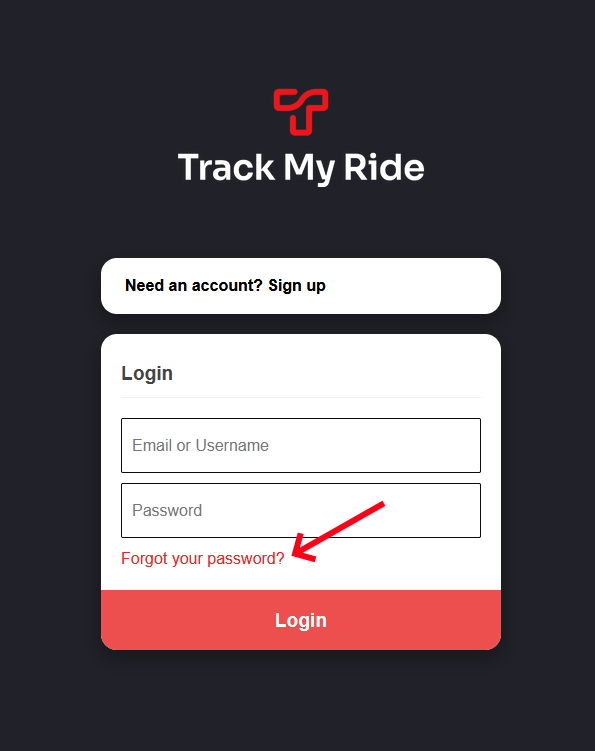
On the login screen, you'll see a "Forgot your password?" link displayed in red text below the password field. Click this link to begin the password reset process.
Step 3: Enter Your Email Address
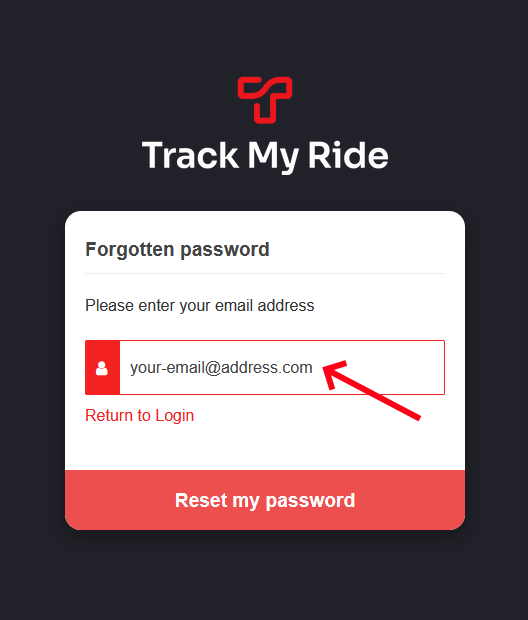
A "Forgotten password" screen appears with a single field asking you to enter your email address. Type the email address associated with your Track My Ride account into this field.
Step 4: Click Reset My Password
After entering your email address, click the red "Reset my password" button to submit your request. The system will check if your email address matches a Track My Ride account.
Step 5: Check for the Reset Email
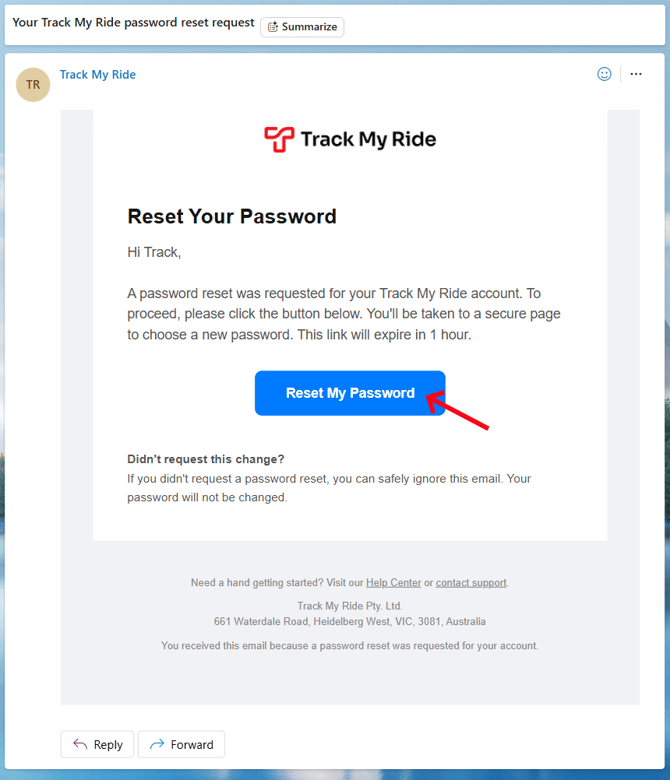
If your email address matched one of our user accounts, you will receive an email within 60 seconds or less. The email will have the subject line "Your Track My Ride password reset request."
Be sure to check your spam or junk folder if you cannot find the email in your inbox. Some email providers may incorrectly flag password reset emails as spam.
If you don't receive an email, then no account exists with that email address. You may have signed up with a different email address than the one you entered. Try checking any other email addresses you might have used.
Step 6: Open the Reset Email
Locate the password reset email in your inbox. Click the blue "Reset My Password" button to proceed. This will take you to a secure page where you can choose a new password.
Step 7: Create Your New Password
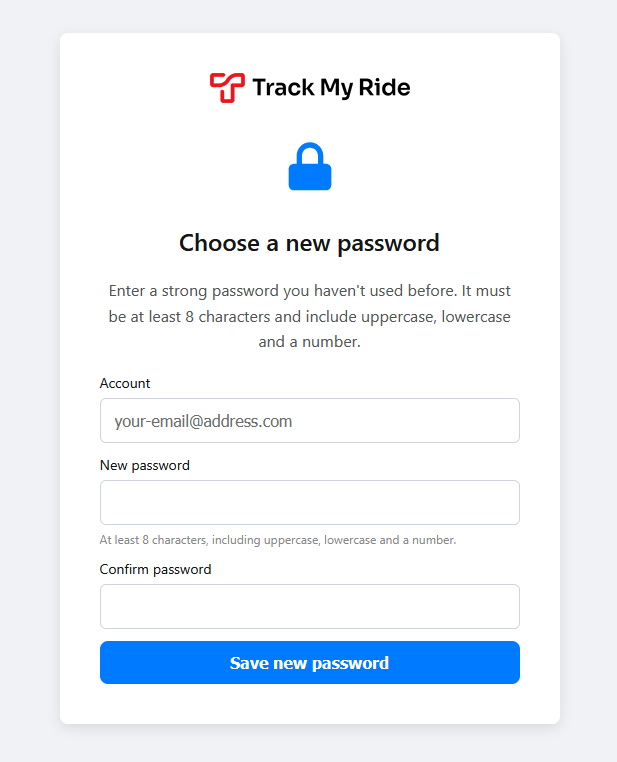
Clicking the button opens a new webpage where you will choose a new password
Step 8: Save Your New Password
After entering your new password in both fields, click the blue "Save new password" button. The system validates your password and saves it if it meets all requirements.
Step 9: Confirmation
After successfully saving your new password, you'll see a confirmation screen with a green tick icon and the heading "Password Successfully Reset."
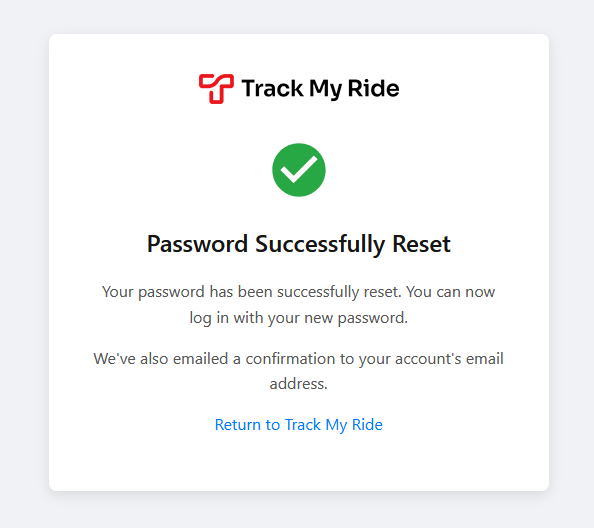
Click the "Return to Track My Ride" link to go back to the login page.
Step 10: Log In With Your New Password
Return to the Track My Ride login page. Enter your email address and your new password, then click the "Login" button to access your account. You now have full access to your Track My Ride account with your new password.
Password Requirements
When creating your new password during the reset process, you must follow these requirements to ensure your account remains secure.
Minimum Length
Your password must be at least 8 characters long. Longer passwords provide better security, so consider using more than the minimum.
Required Character Types
Your password must include at least one character from each of these categories:
Uppercase letters (A-Z): At least one capital letter
Lowercase letters (a-z): At least one lowercase letter
Numbers (0-9): At least one digit
This combination of character types ensures your password has sufficient complexity.
No Password Reuse
You must enter a strong password you haven't used before. Track My Ride maintains a history of your previous passwords and prevents you from reusing them during the reset process. This security measure ensures that if an old password was compromised, it cannot be used to access your account.
Link Expiration
The password reset link in your email expires 1 hour after it's sent. If more than 1 hour passes before you click the link, the reset request becomes invalid and you'll need to start the process again by requesting a new reset email.
What Happens After You Reset
Once you've successfully reset your password, several things happen automatically.
Session Termination
All your existing sessions are signed out across all devices, with one exception. This means:
- Your web browser sessions end
- The mobile app signs out on most devices
- Any tablets or computers where you're signed in are logged out
- Any other active sessions are terminated
Exception: If you have activated location sharing on your own mobile device, that device remains logged in so your live location sharing can continue without interruption. All other devices will be signed out.
Confirmation Email
Track My Ride sends a confirmation email to your account's email address after you successfully reset your password. This email confirms that your password was changed and helps you verify that the change was authorised.
Immediate Effect
Your password reset takes effect immediately. As soon as you save your new password, your old password no longer works, and only your new password can be used to access the account.
Sign In Required
You'll need to sign in again on every device where you use Track My Ride (except the device with active location sharing). Have your new password ready so you can quickly regain access on all your devices.
No Email Received
If you don't receive a password reset email after clicking "Reset my password," there are several possible reasons.
No Account With That Email
If no account exists with the email address you entered, Track My Ride won't send a reset email. This security measure prevents people from discovering which email addresses have Track My Ride accounts.
You may have signed up with a different email address. Try these steps:
- Check if you have multiple email addresses
- Try any work email addresses you might have used
- Try any personal email addresses you might have used
- Check if you might have made a typo when originally signing up
Email in Spam Folder
Check your spam, junk, or bulk mail folders. Some email providers incorrectly identify password reset emails as spam. If you find the email in spam, mark it as "not spam" to help your email provider learn.
Email Delayed
While reset emails typically arrive within 60 seconds, occasionally email delivery can be delayed. Wait a few minutes and check your inbox again.
Email Filter Rules
If you have email filter rules set up, they might be automatically moving or deleting the reset email. Check your email settings for any rules that might affect emails from Track My Ride.