
Various models of Track My Ride GPS vehicle trackers offer advanced monitoring and control capabilities through inputs and outputs. Whether you want to enhance your vehicle security with panic buttons, monitor sensors and accessories, or control external devices, this guide will help you understand and configure these features. Track My Ride GPS trackers are designed to enhance your vehicle's security and monitoring capabilities while maintaining safety as the top priority.
Understanding Inputs and Outputs
Inputs and outputs extend your GPS tracker's functionality beyond basic location tracking. They allow your tracker to interact with the vehicle's electrical system and external devices, creating a more comprehensive monitoring and control solution.
What Are Inputs?
Inputs are electrical wire connections on your GPS tracker that receive positive voltage signals from external devices. The input activates by receiving a +12V or +24V signal on the corresponding Input wire, where the tracker and external device share the same common ground.
Signals That Inputs Can Receive
Depending on what you connect your input to, the signals that can be received include:
- Panic buttons for raising emergency alerts
- Door sensors or lights for security monitoring if a door is opened
- Custom sensors for specific monitoring needs
- Monitoring of electrical components and devices in the vehicle, such as the operation of winches, fuel pumps, PTO or similar equipment
What Happens When an Input Is Triggered
When an input is triggered, such as when a panic button is pressed or a pump turns on, your GPS tracker can detect this event and respond by:
- Sending instant notifications to your phone
- Triggering alerts in your Track My Ride dashboard
- Logging the event for future reference
What Are Outputs?
Outputs allow your GPS tracker to control switching on and off an external device or electrical circuit. Outputs on Track My Ride GPS tracking hardware operate as an Open Collector, which is a switchable path to ground. Outputs do not provide a power source themselves.
Common Uses for Outputs
- Activating warning lights or sirens
- Triggering audible alarms
- Controlling auxiliary systems such as warning beacons
- Operating powered accessories
How Outputs Work with Relays
Because outputs provide a path to ground rather than a power source, high-current devices must be controlled through automotive relays. The relay acts as an electrically controlled switch. The tracker's output controls the relay's coil, which then switches the high-current circuit that powers your device.
For example, to control a device like a siren or floodlight, you would wire an automotive relay so that the tracker's output connects to the relay coil. The relay would be wired with its own fused power connection from the vehicle battery. When the tracker activates the output, it provides a ground path that energises the relay coil, which closes the relay's contacts and allows current to flow from the battery to your device.
The relay must be appropriately rated for the device you're controlling, with proper fusing on the power circuit to protect against short circuits or device failures.
Critical Safety Notice About Vehicle Immobilisation
Track My Ride strictly prohibits using outputs to immobilise your vehicle. The trackers are not designed or certified for vehicle immobilisation.
Why Outputs Cannot Be Used for Immobilisation
Outputs can only be controlled while your tracker has a mobile network connection. Track My Ride does not support immobilising your vehicle via remotely controllable outputs and you must not wire them as such.
Serious Safety Risks
Attempting to use Track My Ride GPS tracking hardware to immobilise the vehicle creates serious safety risks:
- Power steering and brakes will be lost if the vehicle's engine is remotely immobilised
- Remote engine immobilisation while a vehicle is at speed may directly lead to an accident, causing loss of life
- May violate local regulations and laws
- Could result in vehicle damage
- Could result in your vehicle being stranded and unable to be unimmobilised due to poor local mobile network signal strength
Legal Requirements
Per Australian Design Rule (ADR) 82/00 – Engine Immobilisers, only a dedicated purpose-built vehicle immobiliser can be used to immobilise a vehicle. Track My Ride GPS trackers are not certified for this purpose.
Professional Installation Requirements
All input and output connections require professional installation by a qualified auto-electrician. Vehicle electrical systems are complex and varied, and incorrect installation can damage your vehicle's electronics.
Why Professional Installation Is Essential
- Vehicle electrical systems are complex and differ between makes and models
- Incorrect installation can damage your vehicle's electronics
- Professional installation ensures proper current limiting and circuit protection
- Auto-electricians understand proper fusing and relay requirements
- Professional installation protects your warranty
Technical Specifications
Understanding the technical specifications helps ensure you connect appropriate devices to your tracker's inputs and outputs.
Voltage Specifications
Operating Voltage: Matches vehicle system, either 12V or 24V
Input Trigger Voltage: Varies by input type (refer to electrical characteristics table)
Output: Switchable path to ground, up to operating voltage
Maximum Output Current: 500mA per channel
Recommended Operating Current: Below 400mA
High Current Devices: Must use an automotive relay
Critical Current Limit Warning
Exceeding the 500mA current limit on an output will permanently damage your tracker's output circuit and void your warranty. Always use relays for high-current devices.
Detailed Electrical Characteristics
Supply Voltage:
- Recommended operating conditions: +10V to +30V
Digital Output (Open Drain):
- Drain current when output is OFF: 120µA maximum
- Drain current when output is ON (recommended operating conditions): 0.1A to 0.5A
- Static drain-source resistance when output is ON: 400mΩ typical, 600mΩ maximum
Digital Input:
- Input resistance (IGNITION/ACC Input): 47kΩ
- Input resistance (DIN1): 51.7kΩ
- Input resistance (DIN2): 47kΩ
- Input voltage (recommended operating conditions): 0V to supply voltage
- Input voltage threshold (IGNITION/ACC Input): 7.5V
- Input voltage threshold (DIN1): 2.5V
- Input voltage threshold (DIN2): 2.5V
TMR-S8 Device Pinout
Not all Track My Ride tracker models support inputs and outputs. You should refer to your specific hardware tracker model to determine whether inputs and outputs are supported and what the pinout configuration is.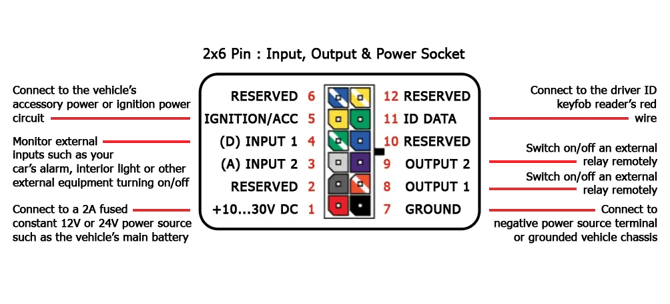
TMR-S8 Connector Configuration
The TMR-S8 uses a 2x6 pin connector for inputs, outputs, and power. The connector provides the following connections:
Pin 1: +10V to 30V DC - Connect to a 2A fused constant 12V or 24V power source such as the vehicle's main battery
Pin 2: RESERVED
Pin 3: (A) INPUT 2 - Monitor external inputs such as your car's alarm, interior light, or other external equipment turning on/off
Pin 4: (D) INPUT 1 - Monitor external inputs such as your car's alarm, interior light, or other external equipment turning on/off
Pin 5: IGNITION/ACC - Connect to the vehicle's accessory power or ignition power circuit
Pin 6: RESERVED
Pin 7: GROUND - Connect to negative power source terminal or grounded vehicle chassis
Pin 8: OUTPUT 1 - Switch on/off an external relay remotely
Pin 9: OUTPUT 2 - Switch on/off an external relay remotely
Pin 10: RESERVED
Pin 11: ID DATA - Connect to the driver ID keyfob reader's red wire
Pin 12: RESERVED
The TMR-S8 tracker itself measures 65mm long by 56mm wide by 19mm tall, making it compact enough for discreet installation in most vehicles.
Accessing Vehicle Settings
Before you can configure inputs and outputs, you need to access your vehicle's settings in Track My Ride.
Step 1: Sign In to Your Account
Log in to your Track My Ride account at https://app.trackmyride.com.au or open the Track My Ride mobile app.
Step 2: Navigate to Vehicles
Click on the vehicles section to view your list of vehicles.
Step 3: Find Your Vehicle
Locate the vehicle you want to configure in the vehicles table. If you have many vehicles on your account, use the search field at the top right to find the right one quickly.
Step 4: Open Vehicle Settings
Click the pencil button on the right side of the vehicle's row to open the vehicle editing popup.
Step 5: Locate Input and Output Settings
In the vehicle editing popup that appears, you'll find settings for configuring both inputs and outputs. You can toggle outputs on or off for a specific duration and select a custom action to perform when an input is detected transitioning from off to on.
Configuring Inputs
The vehicle editor allows you to set actions that occur when inputs are triggered.
Input 1 and Input 2 Actions
You can configure what happens when each input transitions from off to on:
Panic Button: Triggers emergency alerts. If you have wired up a momentary push button panic switch in the vehicle, set the input action to "Panic button". This triggers a panic notification to your account and all devices associated with your account through push notifications.
No Action: No specific action is taken when the input for this vehicle transitions from off to on. Alerts will still be raised if configured appropriately for the vehicle or tracker's inputs through the alerts system.
Relationship Between Input Actions and Alerts
The panic button action operates separately to alerts, which can also be triggered based on the transition of the input from off to on, or on to off. This means you can have both a panic button action that sends immediate notifications and separate alerts configured for the same input.
Configuring Outputs
Outputs can be controlled manually or set to operate automatically based on specific conditions.
Output 1 Control Method
The Output 1 Control Method dropdown allows you to choose how Output 1 operates:
Manual control (Default): Control the output manually via the vehicle editor popup dialogue. You can toggle it on or off whenever needed.
Driver login reminder: When +12V is present on the Ignition/Acc wiring harness wire, Output 1 switches on and remains on until a Driver ID keyfob is read via the Driver ID keyfob reader. This feature helps ensure drivers log in before starting their journey. A Driver ID keyfob reader must be installed in the vehicle (sold separately). See additional details at https://www.trackmyride.com.au/install
Output 2 Control
Output 2 operates with manual control only and can be toggled on or off through the vehicle editor.
Manually Toggling Outputs On and Off
You can manually control your tracker's outputs to activate connected devices on demand.
Understanding Output Timing
Toggling outputs is not instant. The request is queued on Track My Ride servers and will be delivered to the tracker the very next time it connects to the servers. If the vehicle is parked, this will be during the hourly heartbeat. The request may be delayed in being sent to your tracker due to local mobile network blackspots or poor local mobile network signal strength.
Step 1: Press the Toggle Output Button
Click the "Toggle Output" button next to the output you want to control. This opens the output control interface.
Step 2: View Current State
The current state of the output will be indicated by the toggle shown, displaying either "Enabled" or "Disabled".
Step 3: Toggle the Output State
Toggle the output switch to either "Enabled" or "Disabled", depending on the state you wish to change the output to.
When enabled, the output provides a low resistance path to ground, allowing an external +12V or +24V power source to flow current through the output channel.
Step 4: Choose Duration
Choose the duration that the output should remain in the changed state. Upon completion of the duration, the output will automatically switch to the opposite of the chosen state.
Step 5: Save Your Changes
Press "Save" to save your changes and queue your request to change the status of the output on the tracker.
Giving Your Outputs Nicknames
You can assign nicknames to your outputs so you remember what devices they control. This is particularly useful when you have multiple outputs connected to different accessories.
How to Set Output Nicknames
In the vehicle editor popup dialogue, you'll find nickname fields next to Output 1 and Output 2. Enter a short, descriptive name for the device that each output controls.
Example Output Configuration
For instance, if you've wired two high-current devices using relays, you might configure them like this:
Output 1 Nickname: "Siren" Output 2 Nickname: "Flood light"
These are high-current drawing devices (exceeding 500mA), so they must be wired up using automotive relays. The tracker's output channels switch the relays on and off, and the relays control the high-current circuits that power the siren and floodlight respectively.
The siren could be activated, for example, if the vehicle was stolen, to create a loud noise and draw attention to the vehicle. The floodlight could be activated to illuminate the vehicle and its surrounding area for security purposes or night-time loading and unloading.
Monitoring Output Change Requests
After you toggle an output, you can track the status of your request to confirm when the tracker receives and applies the change.
Where to Monitor Request Status
When you save changes to toggle an output, a notice appears informing you that your changes have been queued to be transmitted to your tracker when it next communicates with Track My Ride servers. You can monitor the status of this request in the Events tab.
Understanding the Events Tab
Navigate to the Events tab within the vehicles section to see a list of all configuration changes and output control commands sent to your tracker.
Request Status Indicators
Each output control request in the Events tab shows:
Date: When the request was created
Vehicle: Which vehicle the request applies to
Type: "output control" for output toggle requests
Description: Details of what change was requested, such as "Set output state(s): Output 1 On for 2:00:00"
Sent at: The delivery status of the request
When the request is first queued, the "Sent at" status shows "Queued" in blue, indicating the command is waiting to be delivered to the tracker.
Confirmed Delivery
Once the tracker receives and applies the command, the "Sent at" status changes to green and displays the date and time when the tracker received the command. A "Response" column also appears showing the confirmation message, such as "Output 1 enabled Timeout:permanent" or similar details about what action the tracker took.
Typical Timing
If the vehicle is parked, the command typically delivers during the next hourly heartbeat when the tracker wakes up to communicate with Track My Ride servers. If the vehicle is driving and actively sending tracking information, your request will be received within just a few seconds.
Frequently Asked Questions
What's the difference between inputs and outputs?
Inputs receive signals from external devices and allow your tracker to monitor when things happen (like a panic button press or door opening). Outputs send signals to external devices and allow your tracker to control things (like activating a siren or turning on lights).
Can I use outputs to remotely stop my vehicle if it's stolen?
No. Track My Ride strictly prohibits using outputs to immobilise vehicles. Outputs are not designed or certified for vehicle immobilisation. Immobilising a moving vehicle creates serious safety risks including loss of power steering and brakes, which could lead to accidents and loss of life. Per Australian Design Rule 82/00, only dedicated purpose-built vehicle immobilisers can be used for this purpose.
Why do I need an auto-electrician to install inputs and outputs?
Vehicle electrical systems are complex and vary between makes and models. Incorrect installation can damage your vehicle's electronics. Professional installation ensures proper current limiting, circuit protection, fusing, and relay requirements are met, protecting both your vehicle and your tracker warranty.
What happens if I connect a device that draws more than 500mA to an output?
Exceeding the 500mA current limit will permanently damage your tracker's output circuit and void your warranty. This is why high-current devices must always be controlled through automotive relays rather than directly through the tracker's outputs.
How do I know if my tracker model supports inputs and outputs?
Not all Track My Ride tracker models have input and output capabilities. The TMR-S8 model includes two inputs and two outputs. Check your specific tracker model's specifications or contact Track My Ride support to confirm whether your tracker supports these features.
Can I control outputs when I don't have mobile network coverage?
No. Outputs can only be controlled when your tracker has a mobile network connection to receive commands from Track My Ride servers. If the vehicle is in an area with poor mobile coverage, output control commands will be delayed until the tracker can connect to the network.
How long does it take for an output toggle command to reach my tracker?
This depends on whether the vehicle is moving or parked. If the vehicle is actively driving and sending location data, commands typically reach the tracker within seconds. If the vehicle is parked and the tracker is in sleep mode, the command will be delivered during the next hourly heartbeat when the tracker wakes up to communicate with Track My Ride servers.
Can I set an output to stay on permanently?
Yes, when toggling an output you can select "permanent" as the duration option. The output will remain in the selected state until you manually change it again. However, remember that outputs can only be controlled while the tracker has mobile network connectivity.
What voltage do inputs need to trigger?
The trigger voltage varies by input type. The IGNITION/ACC input triggers at 7.5V, while DIN1 and DIN2 trigger at 2.5V. All inputs accept voltages from 0V up to the supply voltage (between 10V and 30V depending on whether it's a 12V or 24V system).
Can I connect multiple devices to a single output?
While technically possible through appropriate wiring with relays, each output is limited to 500mA total current draw. It's generally safer and more reliable to use one device per output, especially for high-current applications. Always ensure the combined current draw of all connected devices remains below the 400mA recommended operating current.
Do input actions trigger if I have no mobile network coverage?
Input events are logged by the tracker even without mobile coverage, but panic notifications and alerts won't be sent until the tracker can communicate with Track My Ride servers. The events will be transmitted when network coverage is restored.
Can I monitor inputs and control outputs through the mobile app?
Yes, you can access vehicle settings, configure inputs, toggle outputs, and monitor the status of output commands through both the web application and the Track My Ride mobile app.
What's the difference between a panic button action and an alert?
A panic button action is a specific input configuration that triggers emergency notifications to your account and all associated devices through push notifications. Alerts are separate notifications that can be configured to trigger based on various conditions, including input state changes. You can use both simultaneously for the same input.
How do I test if my inputs and outputs are working correctly?
After professional installation, test each input by triggering the connected device (like pressing a panic button) and verifying that the expected action occurs in Track My Ride. Test outputs by toggling them through the vehicle editor and confirming that the connected device activates. Check the Events tab to verify commands are being received by the tracker.